





When you’ve changed the email address of a customer in Exchequer but it’s not updated after the scheduled upload or a manual upload the reason will be because the email has already been used on the web site.
This could be on:
To find out which one search for the email address in the Customer section in the CMS Desk.
Check the Account Code field in the Custom section:
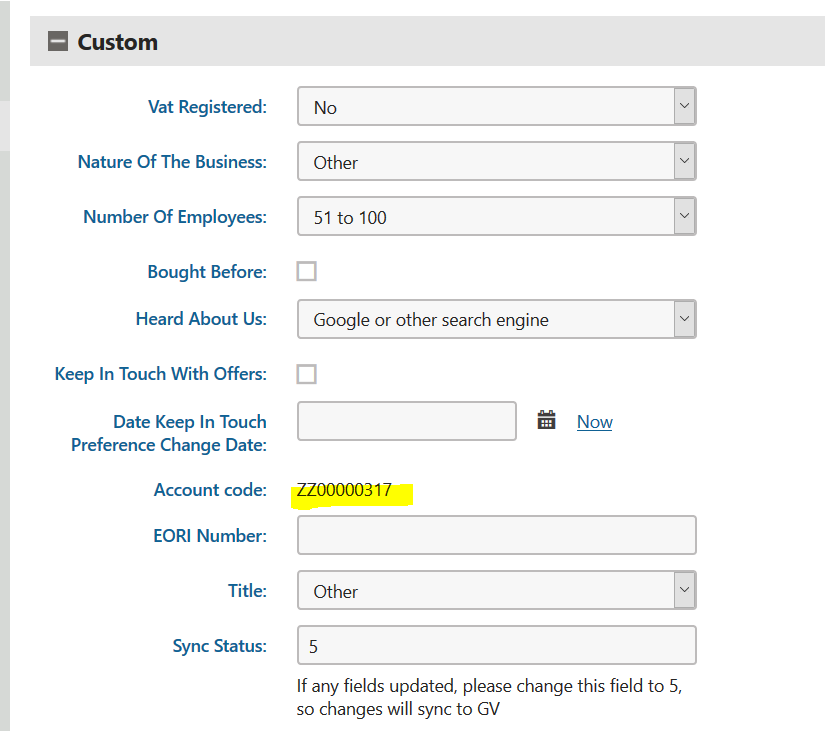
If it begins with ZZ or XX it is a prospect (2).
If it is the Exchequer code for the account but its not showing as the buyer admin when you check using the SOP it is then a buyer (1)
If it is showing a different Exchequer code then it is either the Buyer Admin for that account or a Buyer (you can check the account code using SOP to find out which one) (3 or 4).
To free the email to be used for the required Buyer Admin for option 1, 2 or 4 above you can delete the Customer record form the cms desk. You will then need to go to the user section in CMS Desk and delete the same.
When the upload next runs the Buyer Admin in the required account will then update.


For Option 3, if its being used as a Buyer Admin against another account you will then need to update that Exchequer account’s email first. When this is done the next upload should change both Buyer admin emails.
This could be on:
- An existing buyer of the Exchequer account
- An existing prospect is using it.
- A buyer Admin for a different Exchequer account
- A buyer for a different Exchequer account
To find out which one search for the email address in the Customer section in the CMS Desk.
Check the Account Code field in the Custom section:
If it begins with ZZ or XX it is a prospect (2).
If it is the Exchequer code for the account but its not showing as the buyer admin when you check using the SOP it is then a buyer (1)
If it is showing a different Exchequer code then it is either the Buyer Admin for that account or a Buyer (you can check the account code using SOP to find out which one) (3 or 4).
To free the email to be used for the required Buyer Admin for option 1, 2 or 4 above you can delete the Customer record form the cms desk. You will then need to go to the user section in CMS Desk and delete the same.
When the upload next runs the Buyer Admin in the required account will then update.
If the buyer has placed an order you cannot delete their customer record.
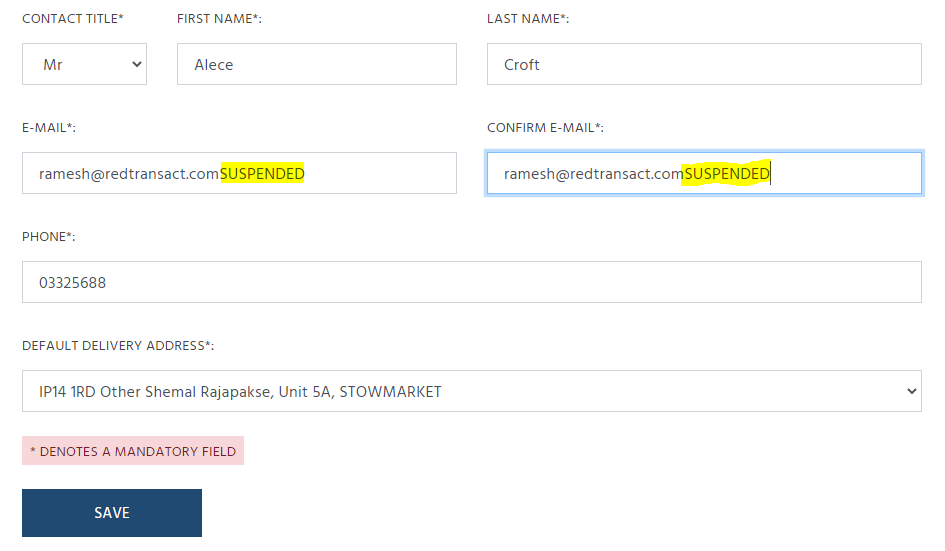
To resolve this you need to change the email in the Buyer so the email can used in Buyer Admin. This can be done from the SOP:
Edit the Buyer:
Once saved then suspend the DEAD buyer:
Then finally run the accounts upload or wait for the scheduled run.
For Option 3, if its being used as a Buyer Admin against another account you will then need to update that Exchequer account’s email first. When this is done the next upload should change both Buyer admin emails.